Module 2 – Lesson 2

In this lesson you’ll learn:

    • Send the COREpriorities assessment to a client
    • Confirm your client has completed the assessment

    • Generate the COREpriorities report

    • Send the COREpriorities report to a client

How to use the COREpriorities report

Watch a short video that walks you through how to send the COREpriorities assessment to your clients, and how to generate the report once they’ve completed it. Below the video you’ll find a step-by-step walkthrough.

How to use the COREpriorities report

Sending the assessment

The report is easy to use and provides helpful insight for your clients. Follow these steps to send the COREpriorities assessment to a client:

Step 1

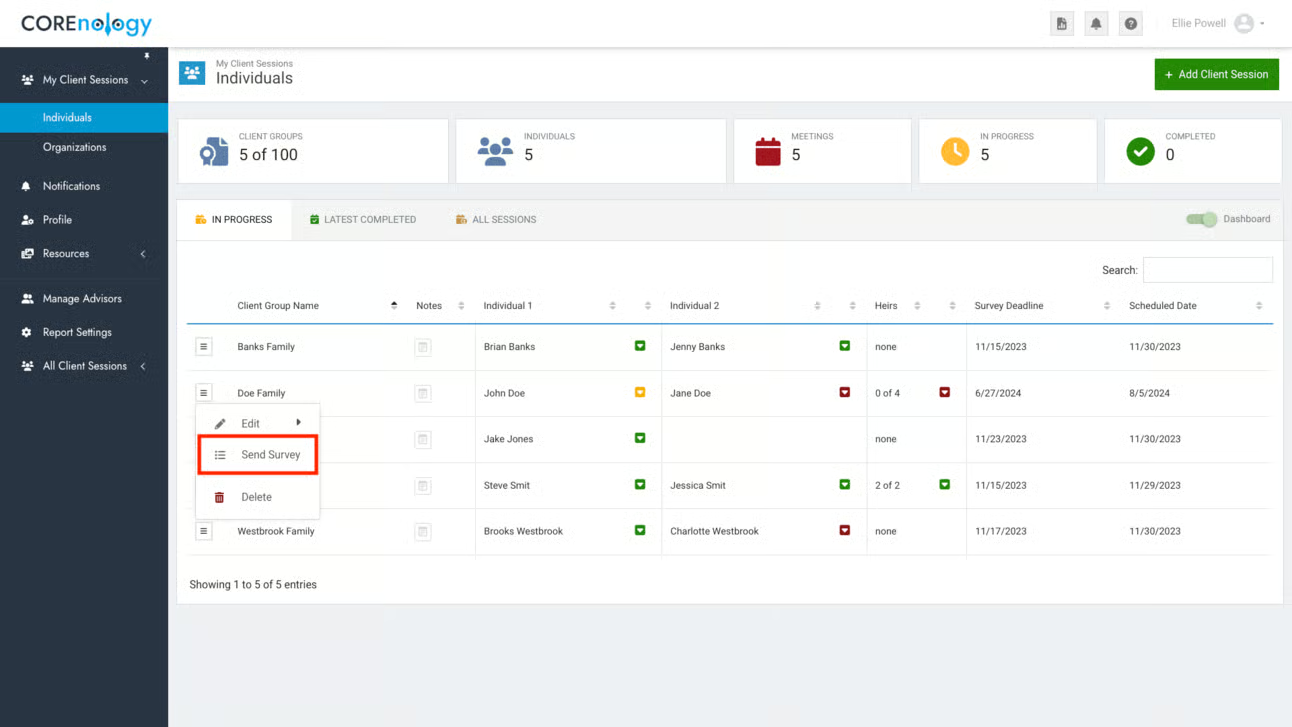
To generate your client’s unique links, head to the COREnology dashboard to select (or create) the Client Group, and click “Send Survey.” 

Step 2

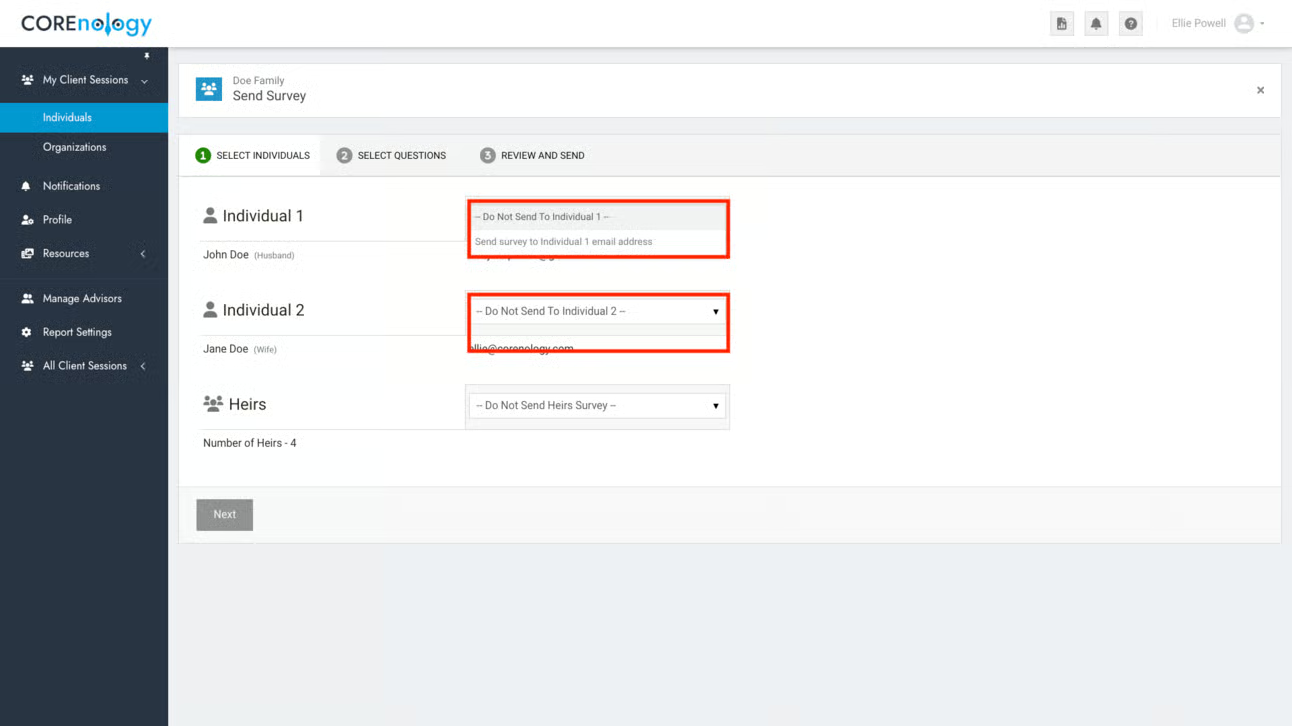
Select the email addresses you’d like to send the invitations to.

Step 3

Select the COREpriorities assessment, then click “Next.” (Make sure other assessments are not selected. COREvalues is typically selected by default.)

Then, click “Next.”

Step 4

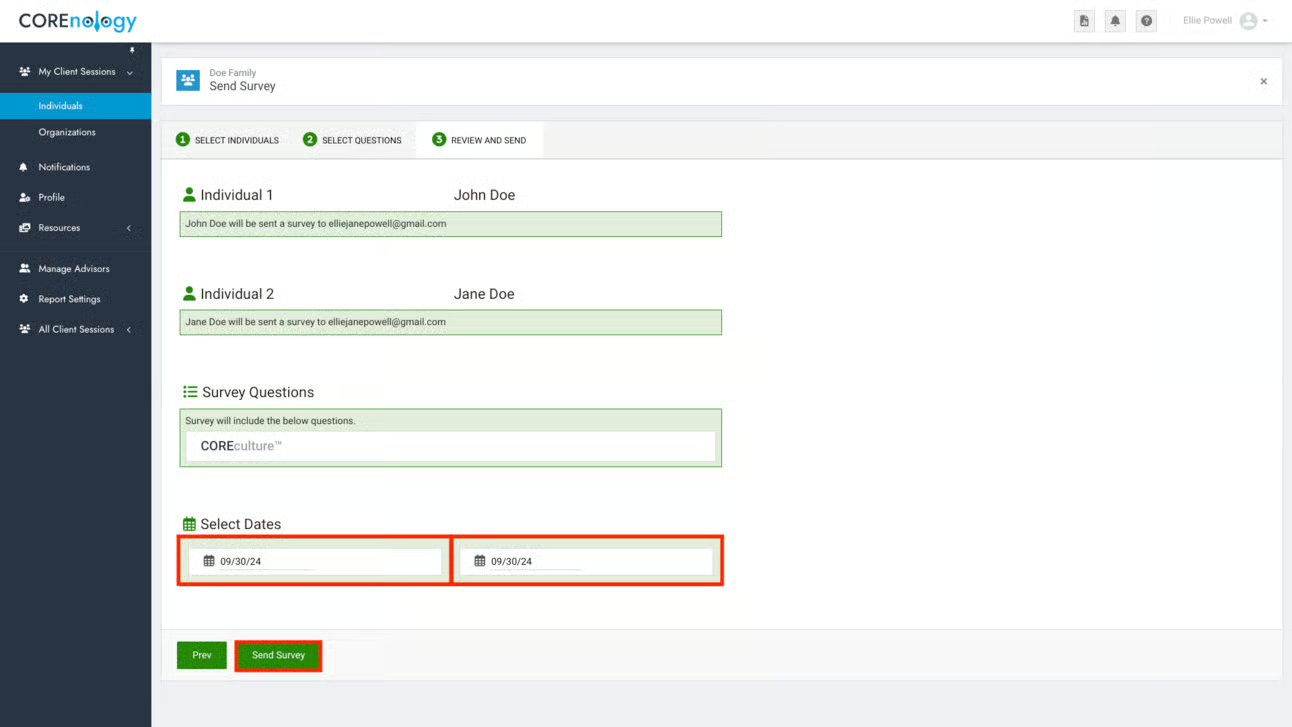
Select a survey deadline, the date by which you’d like the client to complete the assessment. (Don’t worry, the links will not expire for your clients.  These dates are just reminders for you to follow up with clients if they haven’t completed their assessment.)
 
Next, select your notification options if you would to receive, or have the client receive, updates when the assessments are completed.
 
Finally, click “Send Survey.”

Generating the report

Follow these instructions to send your clients the report containing the results of their COREpriorities assessment:

Step 1

Check the dashboard for the status of the assessment.

  • A red box next to a client’s name means they haven’t started the assessment.

  • A yellow box means they’ve started the assessment, but haven’t completed it.

  • A green box means the assessment has been completed.

If several days have passed and the assessment is incomplete, send a reminder email to your client (template below). 

Step 2

Once all assessments are completed, click on the Client Group, then click “Generate Report”.

You can download the report as a PDF, and send it to your client via email (template in the next lesson). 

COREpriorities Email Invitation Template

Instructions

Feel free to use or modify this email template to send your clients their COREpriorities report.Just copy the text below, then paste it into your email. You can paste without the formatting (highlights) using the keys  Ctrl + Shift + V on Windows and Cmd + Shift + V on Mac.


Subject Line Ideas:

  • Before we meet…
  • Your top priorities
  • We do things differently


Body Copy:

[First Name(s)],

At [Firm Name], we want to understand your priorities so we can help you meet them. The better we know you, the better job we can personalize your financial plan.

Please take the assessment linked below to help us identify your priorities. It only takes about 5 minutes.

Once completed, I’ll send you a report with your results to help us create a plan to address what’s most important to you.

Here are your individual links.

  • [Partner 1]
  • [Partner 2]

I look forward to seeing your results. We can discuss them at our next meeting.

Best,

[Your Name]

COREpriorities Email Reminder Template

Instructions

Feel free to use or modify this email template to send your clients their COREpriorities report.

 Just copy the text below, then paste it into your email. You can paste without the formatting (highlights) using the keys Ctrl + Shift + V on Windows and Cmd + Shift + V on Mac.


Subject Line Ideas:

  • Quick favor?
  • Do you have 5 minutes?
  • Your priorities for [YEAR]


Body Copy: 


[First Name(s)],


 My objective this year is to help you address the goals and issues that are most important to you and your family. I’ve sent you a quick 5-minute assessment to help you identify your top priorities.


Once completed, I’ll send you a report with your results to help us create a plan to address what’s most important to you.


Here are your individual links:

  • [Partner 1]
  • [Partner 2]

 I look forward to seeing your results. We can discuss them during our next meeting. 


Best, 

[Your Name]