Module 6 – Lesson 3
In this lesson you’ll learn how to:
Send the COREobstacles assessment to a client
Generate the COREobstacles report
Sending the assessment
The report is easy to use and provides helpful insight for your clients. Follow these steps to send the COREobstacles assessment to a client:
Step 1
To generate your client’s unique links, head to the COREnology dashboard to select (or create) the Client Group, and click “Send Survey.”
Step 2
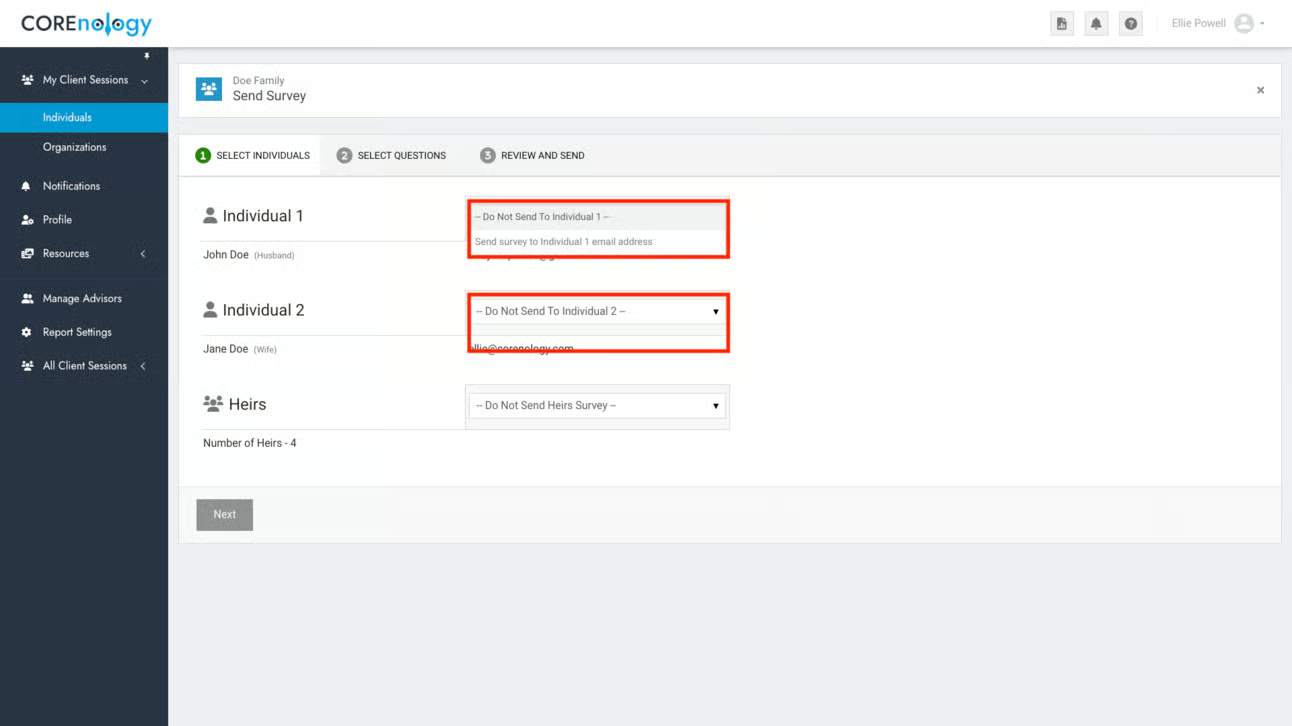
Select the email addresses to which you’d like to send the invitations.
Step 3
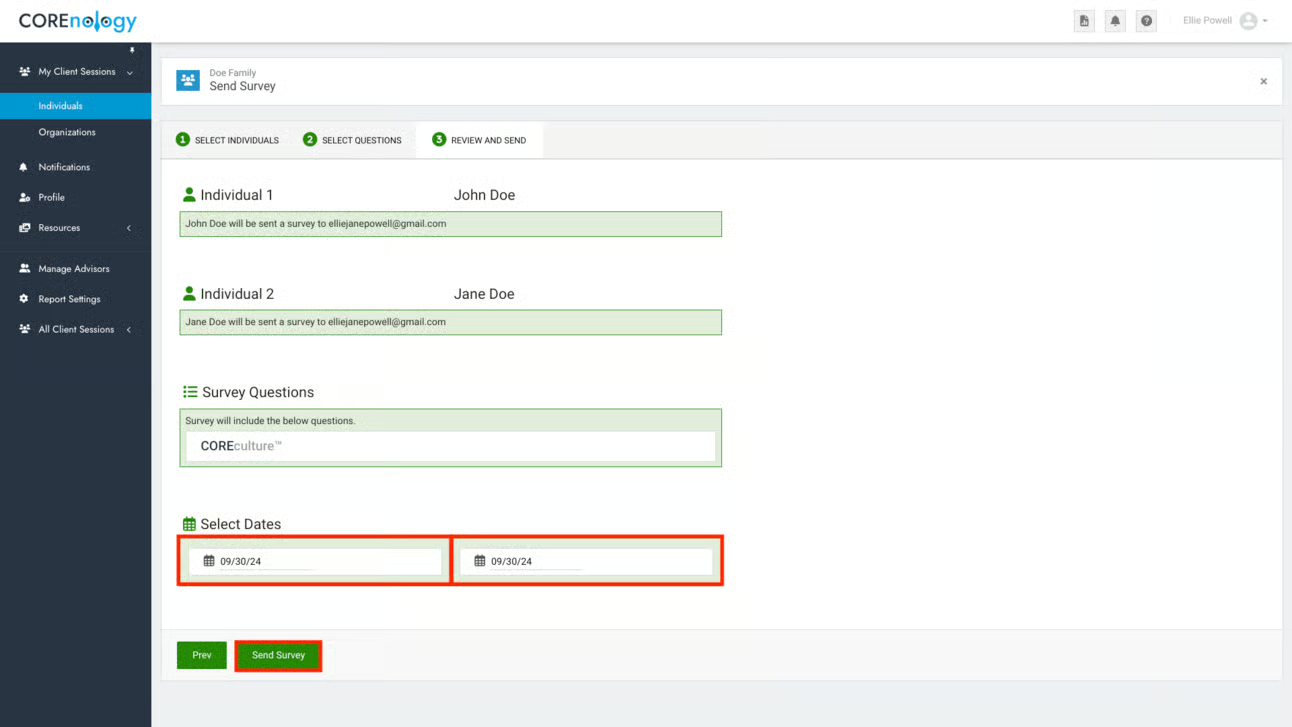
Select the COREobstacles assessment, then click “Next.” (Make sure other assessments are not selected. COREvalues is typically selected by default.)
Step 4
Generating the report
Follow these instructions to send your clients the report containing the results of their COREobstacles assessment:
Step 1
Check the dashboard for the status of the assessment.
A red box next to a client’s name means they haven’t started the assessment.
A yellow box means they’ve started the assessment, but haven’t completed it.
A green box means the assessment has been completed.
If several days have passed and the assessment is incomplete, send a reminder email to your client.
Step 2
Once all assessments are completed, click on the Client Group, then click “Generate Report”.
You can download the report as a PDF, and send it to your client via email.
Feel free to reach out if you encounter a bug, need help navigating the COREnology tool, or simply have a question about how something works.
