Module 2 – Lesson 3

In this lesson you’ll learn:

    • Send the COREvalues assessment to your team

    • Generate the COREvalues report

Sending the assessment

The report is easy to use and provides helpful insight for your teams. Follow these steps to send the COREvalues assessment to your team: 

Step 1

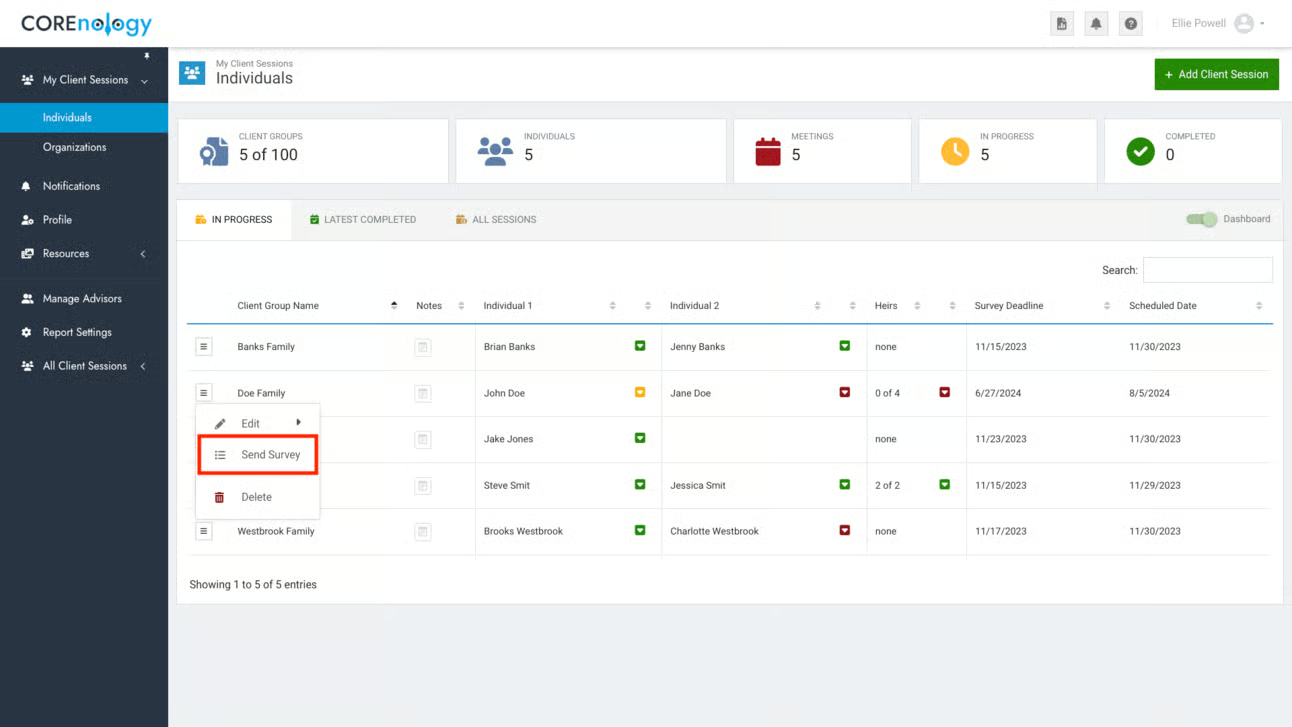
To generate a team’s unique links, head to the COREteams dashboard to select (or create) the Team Name (client session), then go to the dropdown box to the left of their name and click “Send Survey.

Step 2

Verify the email address for the key contact.  Choose “Next.” 

Step 3

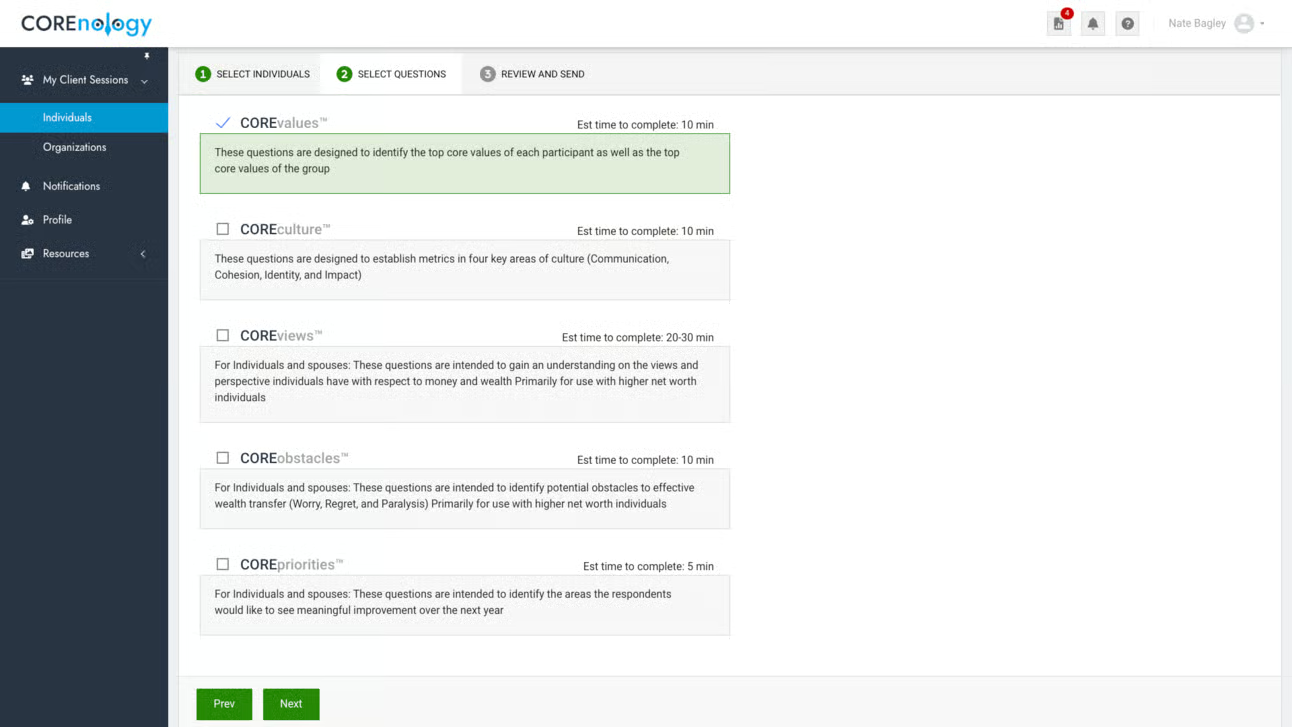
Select the COREvalues assessment, then click “Next.” (COREvalues is typically selected by default.  You can also choose to send both COREvalues and COREculture from this page, either separately or at the same time.) 

Then, click “Next.” 

Step 4

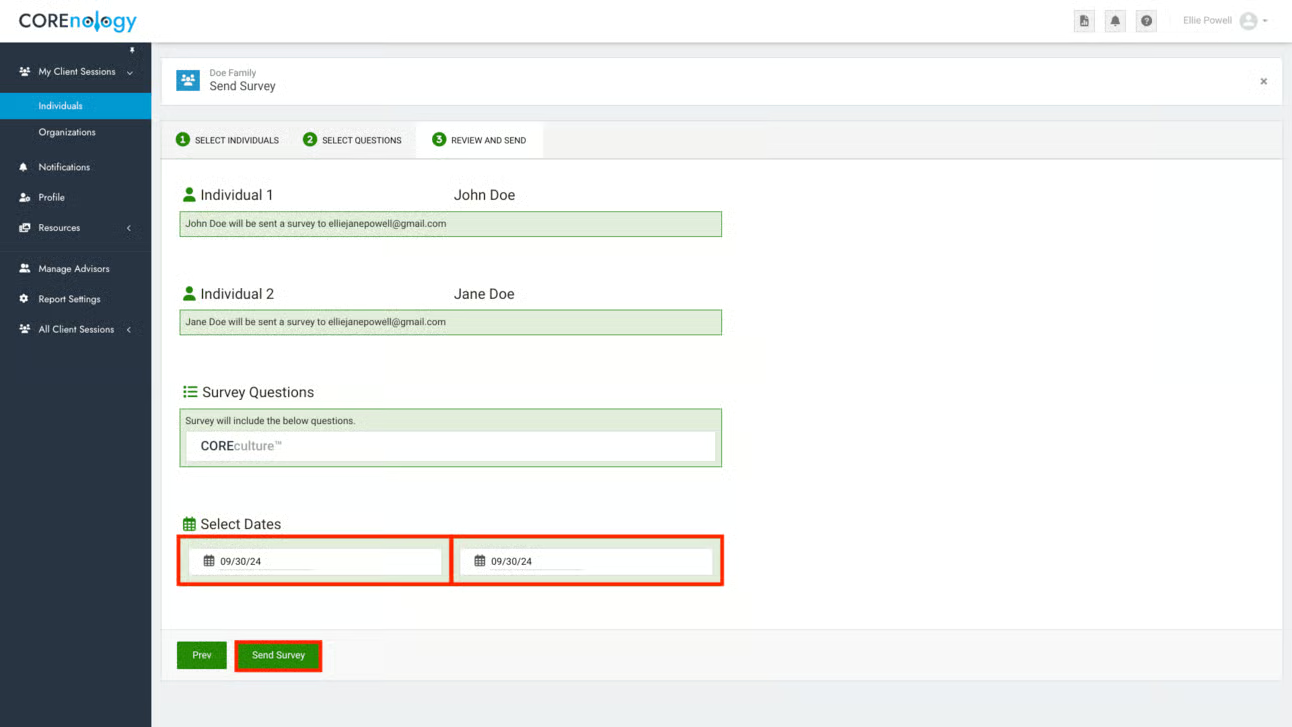
Select dates for the team to complete the survey, and for a potential meeting to review the results. 

(Don’t worry, the links will not expire, and the meeting isn’t mandatory. These dates are just reminders for you to follow up with teams if they haven’t completed their assessment.) 

Finally, click “Send Survey.” 

Generating the report

Follow these instructions to send your team the report containing the results of their COREvalues assessment:

Step 1

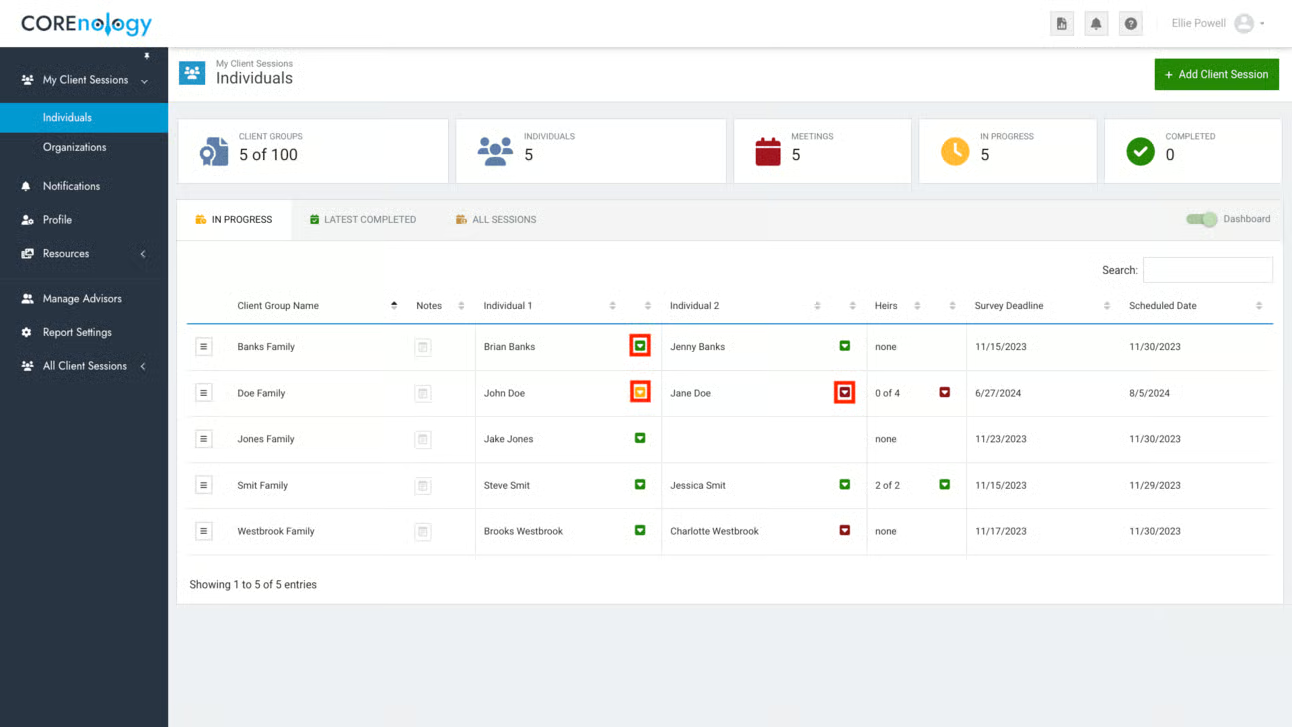
Check the dashboard for the status of the assessment. 

  • A red box next to a team’s name means no one from the team has started the assessment. 
  • A yellow box means some of the team members have completed the assessment. 
  • A green box means the entire team has completed the assessment. 

If several days have passed and the assessment is incomplete, you can send a reminder email to the team. It is easy to copy and paste the link into a reminder email by clicking on the drop-down arrow and clicking the “Copy” button. 

Step 2

Once all surveys are completed, click on the drop-down box next to the Team Name, then click “Generate Report”. 

You can download the report as a PDF, then send it to your team via email or print it and hand out hard copies.